
If you help manage your aging parents’ online presence, headlines about Google Gmail data breaches have probably caught your eye.
As you know, Gmail is hugely popular. More than 1.8 billion people use it worldwide. There are an estimated 140 million users in the United States. That scale is what makes it an attractive target to scammers.
Stories warning that over a billion Gmail accounts are ‘at risk’ are alarming when Gmail is the location where your parent or parents keep a lot of sensitive information: email history, sensitive documents, and even passwords. One of the services included with a Gmail account is a password manager. The same is true of credit card information. A Gmail address plus a Google password manager password are often the credentials used for banking and brokerage accounts.
It’s important to point out that the so-called Gmail breaches weren’t direct hacks of Google’s backend servers. The exposed credentials were actually harvested by infostealer malware running on individual users’ infected devices. Then, criminals compiled the credentials into massive, aggregated datasets that were traded on underground forums.
The information that got into these channels is fuel for the kind of scam that targets older adults every day.
How a Google Account Takeover Hits Your Parents
As mentioned above, a Gmail account is rarely used for just email.
Once a scammer has control of a Gmail account, they can lock the real owner out, read private messages, view all documents and spreadsheets, and pose as one of your parents to everyone in their contacts.
The impersonation problem spans multiple online accounts. In a Facebook account takeover scam, hackers seized people’s accounts and asked their friends for money. A Google account takeover goes far beyond impersonation because the account holds a wealth of personal information.
Protecting a Google Gmail Account From Takeover
The best defense against a possible account takeover, regardless of the type of breach behind it, is to set up two-step verification (2SV), more commonly known as multi-factor authentication (MFA).
Here’s how you can set it up in Gmail:
- Click the avatar or image at the top right of the browser.
- Click the ‘Manage your Google Account’ button.
- Select ‘Security & sign-in’ from the left sidebar.
- Select ‘2 Step Verification.’
Importantly, not all 2SV methods are equally strong. Here is how Google’s options rank, from strongest to weakest. The first two options do not use codes that can be intercepted. They do not require remembering a password, which is often important for older adults.
These options are not mutually exclusive. You can have more than one type of two-step verification set up.
1. A Hardware Security Key
A physical key, such as a Google Titan Security Key, can be purchased for about $35 and connected to a USB-A or C port on your parent’s computer.
If your parent uses only this method, make sure you have backup codes printed and stored in a locked drawer or safe. The option to print backup codes can be found under ‘2 Step Verification’ in a Gmail account.
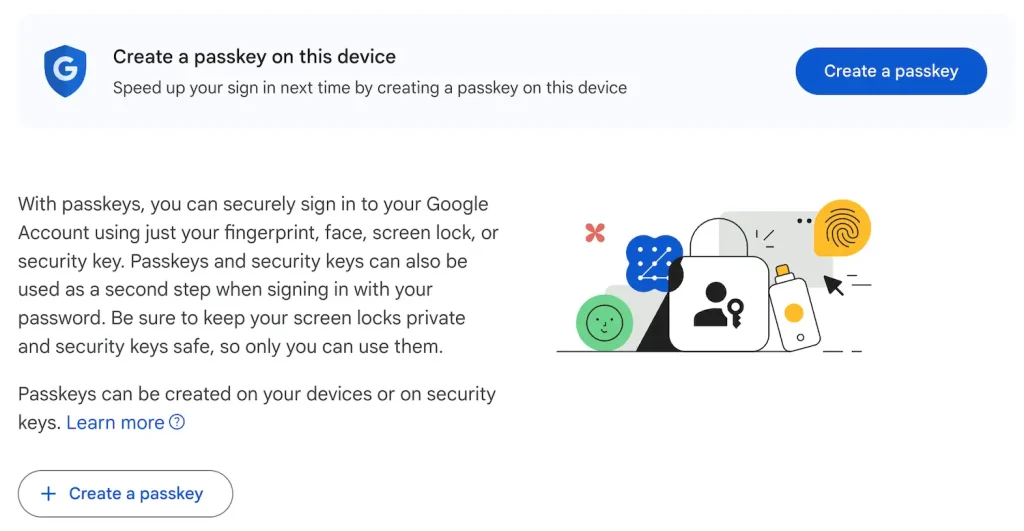
2. A Passkey
A passkey is tied to a computer, tablet, or laptop. Fingerprint identification is an excellent passkey option to consider for your parent.
For 2SV on a desktop or laptop computer, if you help your parent with a one-time setup of Hello Fingerprint on Windows or Touch ID on a Mac, all they will need to do is press their finger on a keyboard button to access their Gmail account. Fingerprint readers are built into many Windows and Apple keyboards. USB fingerprint readers can be purchased.
As with a hardware security key, make sure you have printed backup codes stored.
3. Google Prompt
This uses a “tap yes” notification in Gmail on a smartphone. This is strong protection, but a user can be tricked into approving a login if a scammer spams them with a request.
4. An Authenticator App
A mobile app called Google Authenticator can be downloaded on iPhone or Android devices. The app cycles through six-digit codes, each valid for 30 seconds. This is a solid option, although in rare circumstances, a user could be fooled into entering a code on a fake page.
5. Text Messages or Phone Calls
Codes sent via text message or phone call are better than no 2SV at all. However, these codes can potentially be intercepted or stolen through a ‘SIM swap.’
A Few More Steps To Stay Safe From Breaches
Beyond 2FV, consider spending ten minutes helping your parent do the following:
- Run Google’s free Security Checkup to review signed-in devices and remove anything unfamiliar.
- Switch to a long, unique password created by a password manager.
- Treat any unexpected ‘Google’ call, text, or email as a scam, and never share a verification code with someone who contacts you first.
Finally, because breached data can resurface for years, keep an eye on the finances and credit attached to that inbox. Our guide comparing TransUnion, Equifax, and Experian explains why monitoring all three bureaus matters.
